How to Use AirTag Lost Mode If Your Dog Goes Missing
Share
Quick answer: Open the Find My app, tap Items, choose your dog's AirTag, then scroll down and tap Lost Mode (on newer versions of iOS this may be called Show Contact Info). Follow the steps to add your phone number and a short message. Anyone who finds your dog can then tap the AirTag with an NFC-capable iPhone or Android phone to see your details, and you can be notified when the AirTag is detected.
When your dog goes missing, every minute feels like an hour. Lost Mode is one of the most useful things you can switch on straight away, and it only takes a minute. Here is exactly how to do it, and what happens next.
What does Lost Mode do on an AirTag?
Lost Mode, which Apple also calls Show Contact Info, does two helpful jobs. First, it attaches your contact details to the AirTag so a kind stranger who finds your dog can reach you. Apple says the contact information "allows others to contact you if they find your lost device or item".
Second, Apple says that when your AirTag in Lost Mode is detected by a device in the Find My network, "you'll automatically get a notification". So you don't have to keep refreshing the map.
One important point: you need to have added the AirTag to Find My before your dog goes missing. Apple notes that Show Contact Info is only available for items already set up in Find My.
How do I turn on Lost Mode for my dog's AirTag?
These steps are for an iPhone. The wording can change slightly between iOS versions, but the path is the same.
- Open the Find My app.
- Tap Items at the bottom of the screen.
- Tap your dog's AirTag in the list.
- Scroll down to the section called Lost AirTag (it may show your AirTag's name).
- Tap Lost Mode or Show Contact Info, whichever appears.
- Follow the on-screen steps and enter your phone number.
- Add a short message, for example "This is Bella. She is friendly. Please call me."
- Confirm to switch it on.
If you are at a computer instead, the Find My app on a Mac works the same way: click Items, select the AirTag, click the More button, then Show Contact Info in the Lost AirTag section.
What should I write in the Lost Mode message?
Keep it short and calm. A finder may be holding a nervous dog with one hand and their phone with the other.
- Your dog's name, so the finder can call them.
- A phone number you will definitely answer.
- Anything important, such as "needs medication" or "nervous with men".
You don't need to include your home address. A phone number is usually enough to get the two of you talking.
What does a finder see when they tap the AirTag?
Apple says anyone can use an NFC-capable phone to read a lost AirTag. That includes iPhones and Android phones with NFC. The finder doesn't need the Find My app.
On an iPhone, they hold the top of the phone near the white side of the AirTag. A website then opens showing:
- The AirTag's serial number.
- The message and contact details you added in Lost Mode.
Because many people don't know AirTags can be tapped, it's worth also having a regular name tag on your dog's collar with your number on it. Our guide on whether a microchip is enough to find a lost dog explains why a few layers of ID work best.
How will I know when my dog's AirTag is found?
Once Lost Mode is on, Apple says you will automatically get a notification when the AirTag is detected by a device in the Find My network. Apple also lists a separate Notify When Found option for AirTag in the Find My app. Make sure notifications for Find My are allowed in your iPhone's settings.
When you get close, use Find Nearby (Precision Finding) on a compatible iPhone, or tap Play Sound so your dog's AirTag chimes. To learn more about how location updates work, read how AirTag technology can help bring a lost dog home.
What else should I do while Lost Mode is on?
- Search nearby straight away. RSPCA NSW advises not to wait for your pet to come home.
- Update the microchip record. RSPCA NSW says it's important to update your pet's microchip record to show they are missing.
- Call around. Contact local council pounds, vets, animal shelters and your nearest RSPCA.
- Post locally. Use community lost-and-found pages and put up posters.
- Share with helpers. Apple's Share Item Location feature lets you share your AirTag's location with someone you trust. Apple says sharing stops when you are reunited with the item or after seven days.
FAQs
Is Lost Mode the same as Show Contact Info?
For AirTag, yes, they do the same job. Apple's support pages refer to "Lost Mode or Show Contact Info", and the label you see depends on your iOS version.
Can someone with an Android phone read my dog's AirTag?
Yes. Apple says Android phones with NFC can be tapped against an AirTag to see its information, including your Lost Mode message.
Do I have to turn Lost Mode off when my dog is home?
Yes, it is a good idea. Go back to the AirTag in Find My and turn off Lost Mode or Show Contact Info so finders aren't shown an old message.
Will Lost Mode show my dog's location in real time?
No. An AirTag has no GPS. It reports a location when a nearby Apple device detects it, so updates depend on people being around.
What if I don't have an iPhone with me?
You can use Find My on another Apple device, such as an iPad or Mac. Apple notes that AirTags can't be located through the iCloud website.
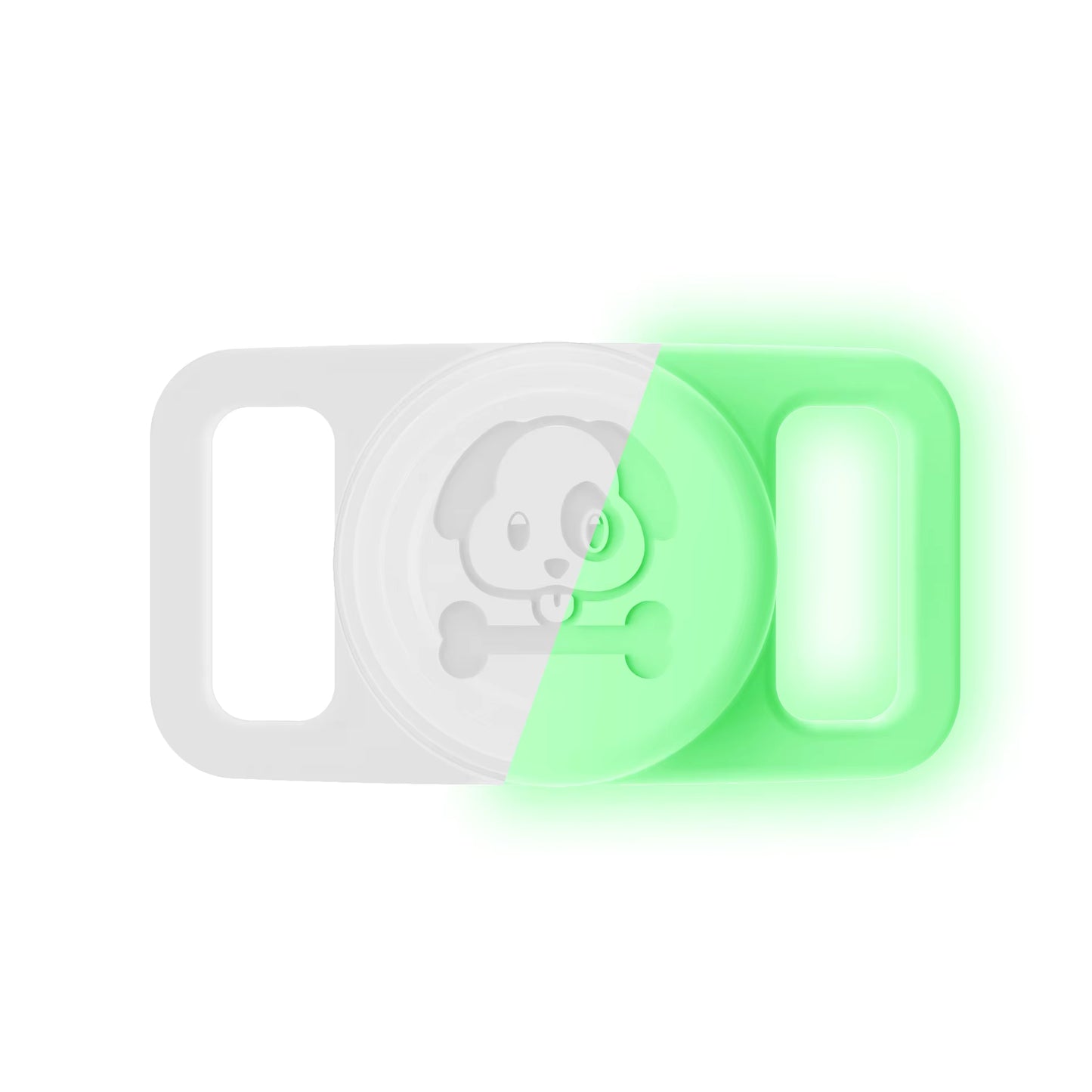
Keep your dog's AirTag secure and dry on their collar with the Pawfetchers waterproof AirTag holder (AirTag sold separately).
Sources
- Apple Support: Use Find My to locate your lost Apple device or AirTag
- Apple Support: Show contact information for a lost item in Find My on Mac
- Apple Support: Mark an AirTag or other item as lost in Find My on iPhone
- Apple Support: Find My features available for your missing device or item
- Apple Personal Safety User Guide: Detect unwanted trackers
- Apple: AirTag
- RSPCA NSW: Lost or found an animal